AppHelp
Creating Pop-up Help for Visual Basic .NET controls
One way to display Help on Windows Forms is through the Help button (question mark), located on the right side of the title bar, accessible through the HelpButton property. This type of Help display is well-suited for use with dialog boxes. Dialog boxes shown modally (with the ShowDialog method) have trouble bringing up external Help systems, because modal dialog boxes need to be closed before focus can shift to another window. Additionally, using the Help button requires that there is no Minimize button or Maximize button shown in the title bar. This is a standard dialog-box convention, whereas forms usually have Minimize and Maximize buttons.
In a running app, press the Help button (question mark) on the title bar and click the control on which you set the Help string.
You can also use the HelpProvider component to link controls to files in a Help system, even if you have implemented pop-up Help. For more information, see Providing Help in a Windows Application.
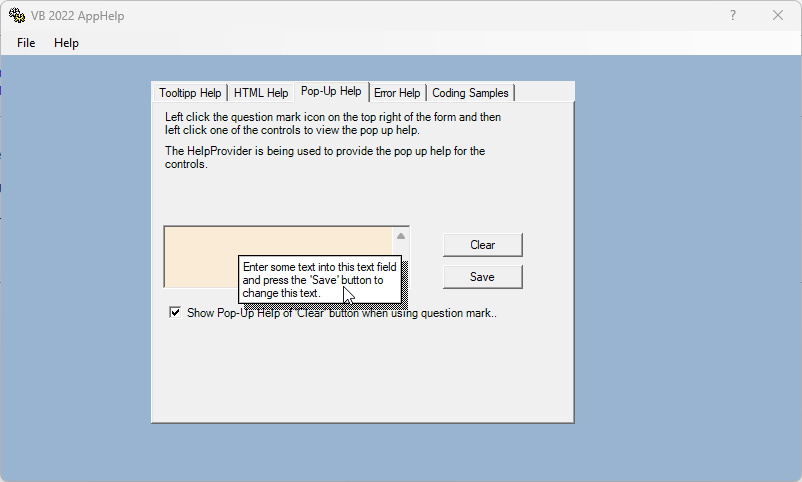
Display Pop-Up Help
In Visual Studio, drag a HelpProvider component from the Toolbox to your form. It will sit in the tray at the bottom of the Windows Forms Designer.

In the Properties window, set the HelpButton property to true. This will display a button with a question mark in it on the right side of the title bar of the form.
In order for the HelpButton to display, the form's MinimizeBox and MaximizeBox properties must be set to false, the ControlBox property set to true, and the FormBorderStyle property to one of the following values: FixedSingle, Fixed3D, FixedDialog or Sizable.

Select the control for which you want to show help on your form and set the HelpString on hlpProvider1 property to the text you want display. This is the string of text that will be displayed in a window similar to a ToolTip. You can do this by writing code, too.
Pop-Up code snippets
' set up pop-up text for controls
HelpProvider1.SetShowHelp(Me.txtPopUp, True)
HelpProvider1.SetHelpString(Me.txtPopUp, "Enter some text into this text field and press the 'Save' button to change this text.")
HelpProvider1.SetShowHelp(Me.cmdPopUpTextClear, True)
HelpProvider1.SetHelpString(Me.cmdPopUpTextClear, "Press the 'Clear' button to reset the text field.")
HelpProvider1.SetShowHelp(Me.cmdPopUpTextSave, True)
HelpProvider1.SetHelpString(Me.cmdPopUpTextSave, "Press the 'Save' button to save the text as the new Pop-Up text.")
Save the text as new HelpString by setting the SetHelpString property:
Private Sub cmdPopUpTextSave_Click(sender As Object, e As EventArgs) Handles cmdPopUpTextSave.Click
    HelpProvider1.SetHelpString(Me.txtPopUp, Me.txtPopUp.Text)
End Sub
Disable the Pop-Up message for this control by setting the SetShowHelp property to False :
Private Sub chkShowPopUpHelp_CheckedChanged(sender As Object, e As EventArgs) Handles chkShowPopUpHelp.CheckedChanged
    If chkShowPopUpHelp.Checked = True Then
        HelpProvider1.SetHelpString(Me.cmdPopUpTextClear, "Press the 'Clear' button to reset the text field.")
    Else
        HelpProvider1.SetShowHelp(Me.cmdPopUpTextClear, False)
    End If
End Sub